Monitor traffic_
Use Firewall traffic overview and rule impact preview to understand how Appwrite Firewall handles project requests.
3 min read
Firewall gives you two views of your rules. Use the impact preview to size a rule before you create it, and the traffic overview to see what it did after.
Traffic overview
Open Firewall in your project. Above the rules list, the overview chart and metrics summarize recent traffic for the selected date range and interval.
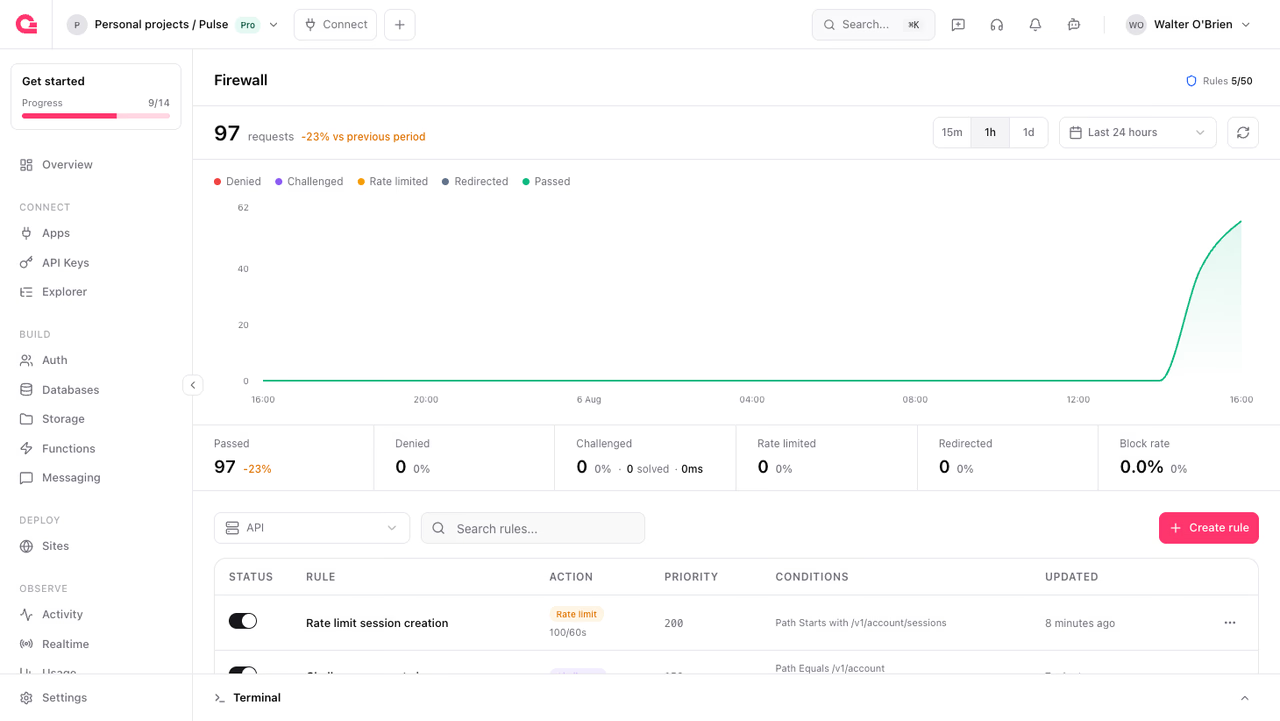
Series include:
| Series | Meaning |
|---|---|
| Passed | Every request that reached your project API, whatever Firewall then did with it, plus edge requests Firewall allowed |
| Denied | Requests rejected by a deny action (403) |
| Challenged | Requests challenged by a challenge action, including Attack mode on a site |
| Rate limited | Requests throttled over a rate limit quota (429) |
| Redirected | Requests answered with a redirect action |
Block rate is denied plus rate limited, as a share of that count.
Bypassed requests and under-quota rate-limited requests have no series of their own. Both are allowed, so they appear under Passed.
A request that an API rule denies, challenges, rate limits, or redirects still counts under Passed, because it reached your project before Firewall stopped it. The headline total counts that request in two series.
Rules on a Function or a Site stop the request at the edge, so Appwrite counts those requests once.
Use the date range picker and interval controls to zoom into an incident, or drag across the chart to select a range.
The chart follows the resource selector above the rules list: API shows project API traffic, and a selected Site or Function shows traffic for that resource only.
What the metrics tell you
If Passed is high and Denied is flat, check that the rule is enabled, that no bypass rule with a lower priority number catches the traffic first, and that the rule's conditions match your live traffic.
If Rate limited climbs with normal load, raise the limit, lengthen the interval, or narrow the conditions.
Impact preview
When you create or edit a rule, the wizard sidebar estimates how many recent requests would have matched. Use it to tighten a broad path or country filter before you turn on deny, and to size a rate limit quota against real volume.
The estimate covers IP address, path, method, country, continent, state, city, hostname, operating system, browser, and user agent. With the premium Geo DB addon, it also covers ISP, AS number, AS organization, connection type, connection usage type, and connection organization.
When a condition uses an attribute that usage can break down, the wizard also charts the top values seen in recent traffic for that attribute, scoped to the rule's resource. Use these charts to pick country codes, ISP names, paths, and similar values. Premium city and network breakdowns require the addon; without it the charts show an upgrade prompt. Attributes with no usage breakdown, such as Continent and State, still contribute to the match estimate but do not get a distribution chart.
A rule that uses Header, Query parameter, Query parameter name, Protocol, Accept, Accept-Language, Cookie, or other attributes without usage data, a does not contain condition, or more than eight estimable conditions shows Preview unavailable instead of a number. The rule still enforces every condition. IP addresses are compared as text, so a CIDR range shows zero matches. The rule still matches every address in the range.
To confirm which rule handled a request once the rule is live, read the X-Appwrite-WAF-Rule response header. See Find out which rule fired.
Was this page helpful?
Share what worked or what we should fix. Once approved, our agents automatically apply suggested updates to the docs.