Partners keys_
Authenticate Appwrite Console APIs from your backend with a Partners key, and provision organizations and projects for your customers.
3 min read
A Partners key authenticates server-to-server calls against one Appwrite organization. Your backend uses it to create projects, manage members, and register app installations for the customers you host.
Every request sends the key and the organization ID, and no project ID, so one key can never act on another organization.
Create a Partners key
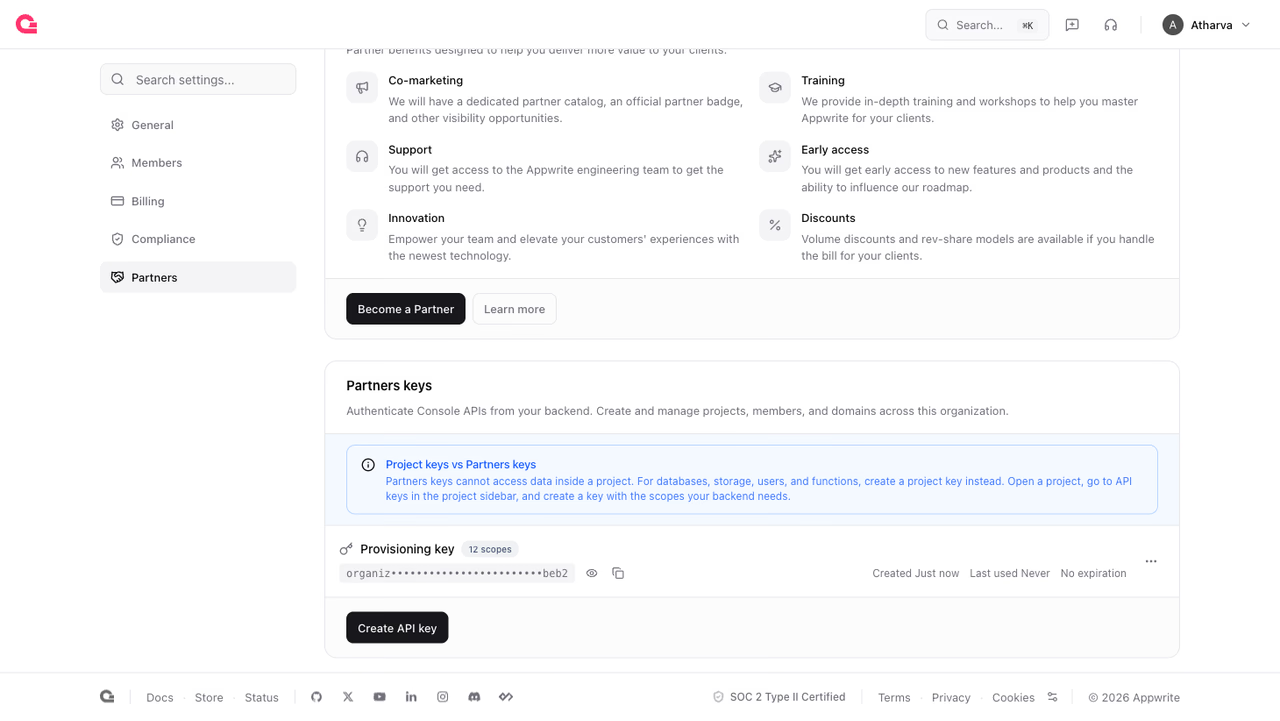
In your organization, open Settings > Partners and find the Partners keys card. Click Create API key.
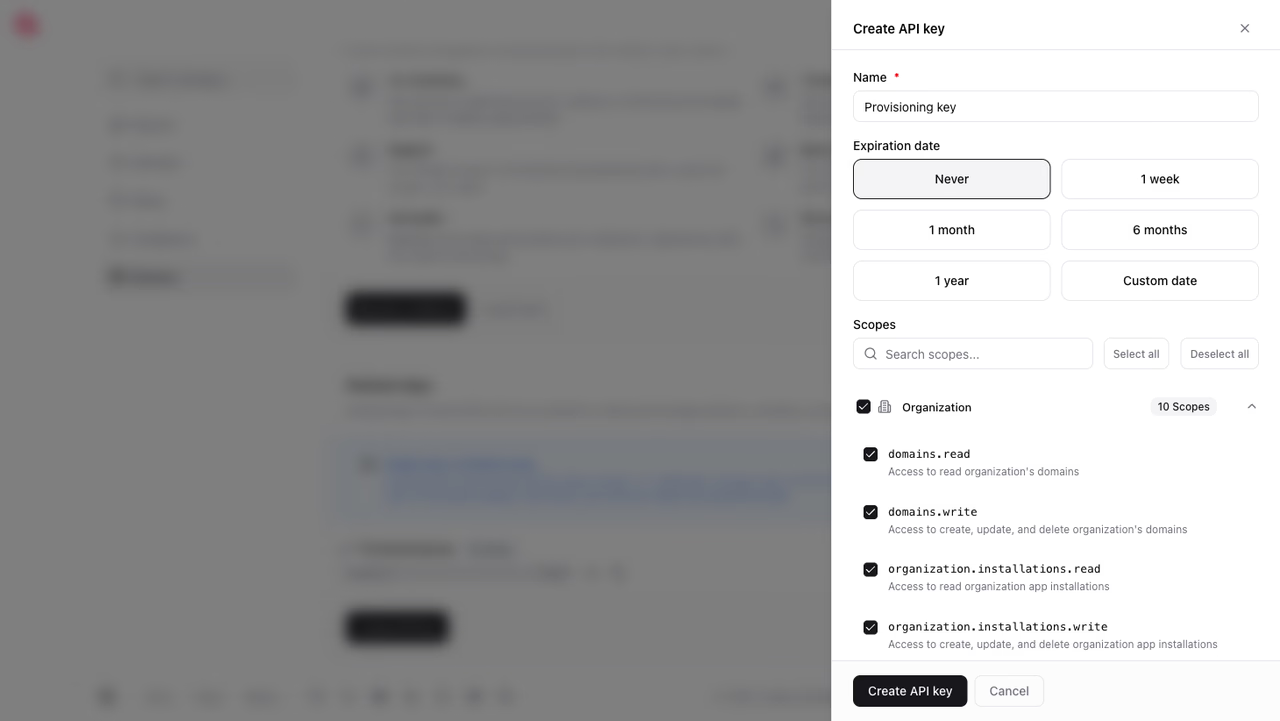
Give the key a name and choose an expiration. Select the scopes your backend needs, listed in Scopes. The secret starts with organization_ and appears in the card once you save.
Use the key
If the organization ID does not match the key, Appwrite rejects the request.
What a Partners key reaches
A Partners key creates, renames, and deletes projects, and it cannot read or write anything inside one. Databases, storage, users, functions, and proxy rules all need a project API key with the matching project scopes.
The key also has no billing scopes, so plans, invoices, credits, and payment methods stay in the Console.
When to use a Partners key
Choose a Partners key when:
- Your platform creates a dedicated Appwrite project per customer
- Your backend runs a control plane over an organization you operate
- Your customers never sign in to Appwrite themselves
Use OAuth connect instead when customers bring their own Appwrite organizations and grant your product access. Many platforms run both.
Keep the key safe
A key with project write scopes can create and delete every project in the organization. Treat it the way you treat a root credential.
- Keep the secret on your server. It does not belong in a browser, a mobile app, or a repository.
- Store it in a secrets manager and limit access to your deployment pipeline.
- Create one key per environment so a leaked staging key cannot reach production.
- Use a read-only key for dashboards so monitoring never holds write scopes.
- Rotate on a schedule: create the replacement, deploy it, then delete the old key.
- Set an expiration on keys you issue for a one-off migration or an audit.
Scopes
A Partners key holds a fixed set of scopes, chosen when the key is created. The Console groups them under Organization and Projects.
| Organization scope | Grants |
|---|---|
organization.read | Read the organization |
organization.write | Update and delete the organization |
organization.memberships.read | Read organization memberships |
organization.memberships.write | Create, update, and delete organization memberships |
organization.keys.read | Read organization keys |
organization.keys.write | Create, update, and delete organization keys |
organization.installations.read | Read organization app installations |
organization.installations.write | Create, update, and delete organization app installations |
domains.read | Read the organization's domains |
domains.write | Create, update, and delete the organization's domains |
| Project scope | Grants |
|---|---|
projects.read | Read the organization's projects |
projects.write | Create, update, and delete the organization's projects |
The two project scopes cover each project's existence, name, and region. They do not reach the services inside a project.
keys.read and keys.write still appear in the Console and are deprecated. Use organization.keys.read and organization.keys.write instead.
Next steps
Was this page helpful?
Share what worked or what we should fix. Once approved, our agents automatically apply suggested updates to the docs.